Contents
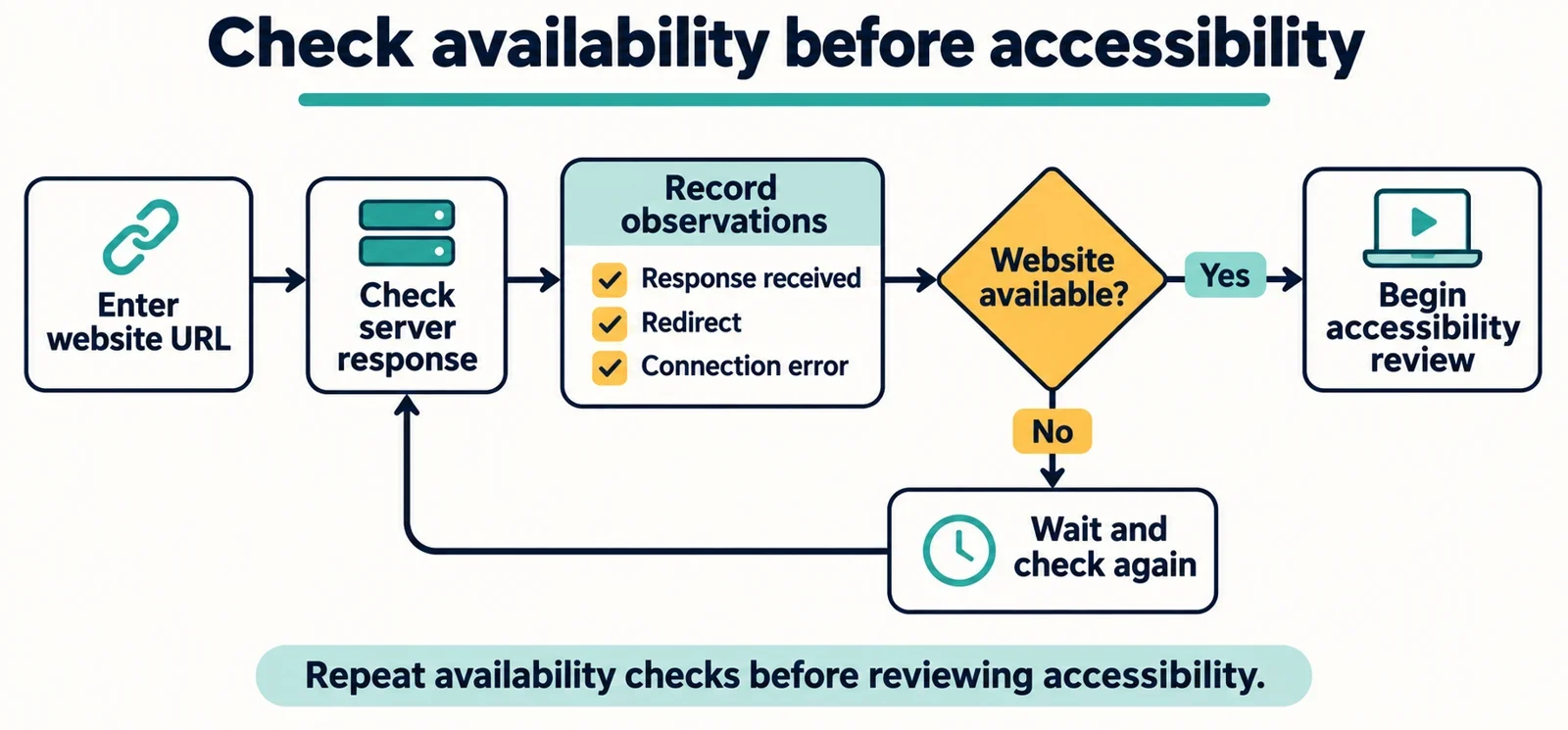
A repeatable URL availability review gives beginners a confident starting point before any accessibility-specific work on a client website. This workflow explains how to enter URLs, run server-side checks, read observations, decide what needs attention, and move into basic accessibility checks. Because availability results show where a URL lands but do not prove accessibility, the guide keeps the two stages separate while explaining when one matters to the other. Readers will also learn how to prepare findings into a client report with branding and local export options.
Start the availability workflow
Begin by entering the client URLs you want to review. You can enter one URL at a time, or add multiple URLs if the interface allows. Start with the homepage and a few key pages so your first review stays manageable while you learn how the tool reports results.
After submission, the availability check runs server-side and returns observations for each URL. Each observation shows where the URL lands, including the HTTP status result and redirect path. It also reports response latency, downloaded body size and caching headers measured from the WordPress server. Treat these as response measurements, not Lighthouse scores, Core Web Vitals, or browser load-time tests.
Use each observation to decide what needs attention next. A URL that returns an expected status and follows the intended redirect path may need no immediate action. A URL that returns an error, an unexpected redirect, or appears to be missing should be flagged for follow-up before you begin deeper accessibility testing.
Before running checks, confirm which URLs you are permitted to test and whether the client expects results for staging or production addresses only. Keep a simple list of the URLs and their observed statuses so you can compare results across repeat reviews.
Typical decision steps
- Enter the homepage URL first, then add additional key pages such as contact, services and legal pages.
- Run the check and record the status, redirect path, latency, body size and caching headers for each URL.
- Mark expected results as complete.
- Flag unexpected statuses, redirects or missing pages for follow-up.
- Re-run the check after any fix to confirm the URL now behaves as expected.
Questions to ask before starting
- Should I test production URLs only, or are staging addresses included in the review scope?
- How many URLs can I add at once in the current interface?
- Who will receive the observations, and what format do they need them in?
Interpret status results and limits
HTTP 2xx results generally indicate that the server returned the requested content successfully, while 3xx results indicate redirection. These status results prove that the URL responded at the time of the check, but they do not guarantee ongoing availability, correct content, or accessibility. Timestamps show when the observation was made, so treat each result as a snapshot rather than a continuous monitoring record.
The tool does not provide background polling or an SLA percentage based on the supplied information. Snapshots are retained only as long as the platform makes them available; readers should confirm current retention details directly from the tool’s interface or official documentation before assuming historical data will remain accessible.
Security-header observations inspect selected headers and directives to support informed configuration decisions. A present header can still be misconfigured, and this review is not a vulnerability scan or certification. Similarly, the HTML review covers titles, descriptions, canonicals, robots directives, and heading structure in returned HTML only. JavaScript-rendered content, robots.txt, and search index status are outside this check.
Responsive preview lets users review a page layout in common viewport sizes. If embedding is blocked, a new-tab link is provided. Large viewports scroll within the bench while the page keeps the same width. This visual check is useful for spotting obvious layout problems, but it is not a substitute for testing on actual devices or with assistive technology.
Connect availability to accessibility review
Availability findings matter before running accessibility checks because a page that does not load cannot be meaningfully evaluated for accessibility. If a URL returns an error, redirects to an unexpected location, or is missing, fix or clarify the availability issue first. Testing an inaccessible URL wastes time and can produce misleading results.
Once the key URLs are available, choose a sample for accessibility review. The sample should include the homepage, text-based content pages, images, video and audio, interactive tools and transactions, login pages, PDFs and documents, dynamic content, navigation pages, accessibility, contact, and legal pages, and settings or preferences pages. This range helps ensure the review represents real user journeys rather than only the easiest pages to test.
Use a basic accessibility check when you need a quick, non-technical starting point or when the client wants confidence that common barriers are not obvious. Use a detailed accessibility audit when the client requires formal conformance evidence, legal compliance support, or a comprehensive barrier inventory across templates, components, and user flows. A basic check is not definitive, and more robust assessment is needed for formal claims.
Run beginner accessibility checks
Begin with checks that any browser can perform, optionally supported by WAVE or WAI resources.
Check the page title. Each page title should appear in the browser tab, be descriptive in simple language, state what the page is about, and not duplicate another page’s title. Titles help users understand where they are, especially when multiple tabs are open.
Check headings. Headings should create a logical outline for the page, with no skipped levels where structure matters for navigation. Avoid headings chosen only for visual appearance.
Check links. Link text must make sense in isolation and explain where the link goes. Avoid phrases such as “click here” or “more information,” because assistive-technology users may navigate by link text alone and will not know what the link does or where it leads. Avoid instructions that rely only on sight, such as “click the round button,” “big button below,” or “red button.”
Check images. Non-decorative images, including charts and diagrams, need alt text explaining the conveyed information or a description in the surrounding body text. Decorative images need an empty alt attribute only. This distinction helps screen-reader users receive meaningful content without hearing irrelevant descriptions.
Check stylesheets. To test whether pages remain usable when stylesheets are disabled, turn off CSS in the browser or use developer tools to disable styles, then confirm that content is still readable, headings remain in order, forms work, and navigation is operable. Do not assume visual layout equals accessibility.
Check video and audio. Confirm that time-based media has captions, transcripts, or alternatives as appropriate, and that controls are operable without relying only on mouse interaction.
WAVE and WAI Easy Checks are suitable for someone new to accessibility and not technical. Easy Checks helps people check some accessibility aspects quickly and easily, but it is not definitive. A page could pass these checks yet still have significant accessibility barriers. No single technique is sufficient. Automation detects only conditions the tool can find, while keyboard testing, screen-reader testing, visual checks, semantic review, and manual task-completion testing are necessary for context.
Prepare the client report
Before sending findings to a client, prepare a report with clear identity and export options. Report identity includes the brand or agency name, an optional watermark, and an optional recommendation. Branding and recommendations stay in the tab.
Export the report by printing or saving as PDF from the browser, or take the data into your own workflow for further formatting. Label samples clearly so the client knows which URLs and page states were reviewed. Include the exact URL and page state, browser, operating system, viewport, zoom level, assistive technology version if used, steps taken, actual and expected results, relevant accessibility criterion, confidence level, raw evidence, and reviewer interpretation. Reproducible findings help clients understand what was checked and what still needs attention.
Run live checks immediately before sending the client audit. Availability can change between the initial review and delivery, and a URL that was working earlier may now return an error or redirect. Fresh observations prevent the client from receiving stale findings and keep recommendations grounded in the current state of the site.