Table of Contents
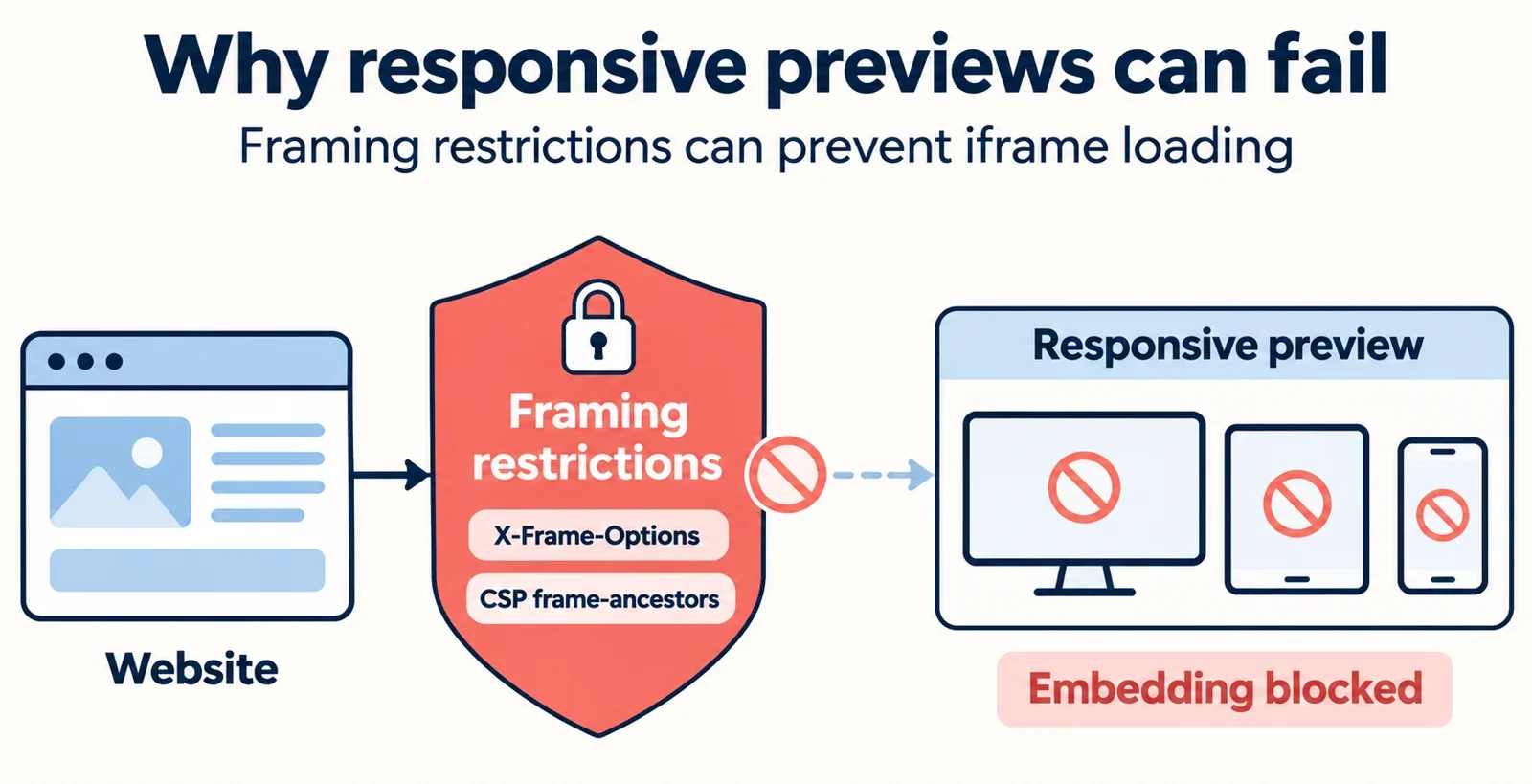
A responsive preview lets you see how a webpage appears across different screen widths inside a single browser tab. When a site suddenly shows a blank screen or a connection refusal inside that preview canvas, the problem is usually not your internet connection or the preview tool itself. It is often a deliberate security choice made by the website owner.
Many websites send HTTP headers that tell browsers whether the page may be embedded inside another page or an iframe. If a responsive preview loads a target URL inside such an embedded canvas, a strict framing policy can block the load entirely. For beginners performing a site review or audit, this can feel like a broken tool. Understanding the difference between an embedding block and a general network or browser limitation builds confidence and helps you choose the right next step.
This guide explains why responsive previews fail for certain sites, details the security headers behind framing restrictions, provides a beginner-friendly workflow for blocked previews, and outlines alternative verification techniques you can use safely.
Why Responsive Previews Fail to Load Certain Sites
Responsive preview tools typically request the target web page inside an iframe or similar embedded viewing canvas. The tool changes the canvas width to simulate different screen sizes, but the page is still loaded from the live website. If the website refuses that request, the preview may show a blank screen, an error message, or nothing at all.
Several causes can produce this result. The website may explicitly forbid embedding through security headers. It may require cookies, authentication, or a specific referrer that the embedded request does not supply. The target server may block requests from certain origins or return an error when it detects an embedded context. Network problems, domain misconfiguration, or an unavailable origin server can also prevent the page from appearing.
A blank screen does not always mean the website is down. It may simply mean the site has chosen not to be displayed inside another page’s frame. Distinguishing between an intentional framing block and a general loading failure is the first step in responding with confidence instead of assuming the preview tool is broken.
Responsive preview tools generally use the current browser’s rendering engine rather than emulating standalone mobile operating system browsers or reproducing behavior unique to another browser. Because of this, a page that loads inside the preview may still behave differently on an actual phone, tablet, or desktop browser. Preview results should be treated as one check among several, not proof of how every visitor will experience the site.
What to observe when a page fails to load
Look at what appears inside the canvas. A blank white area can indicate a refused connection, while an explicit error message may reveal that the website blocked embedding. Check whether the same URL opens normally in a new tab. If it loads directly but not inside the preview, the cause is likely an embedding restriction rather than an outage. If it fails both inside the preview and in a new tab, the problem may be network connectivity, server availability, or an incorrect URL.
Beginner decision steps
Start by copying the target URL and opening it directly in your browser. Then return to the preview tool and try a different canvas width or device preset. If the page still does not appear inside the viewer, note whether other websites load successfully in the same tool. This comparison helps separate a single-site restriction from a broader tool or network issue.
When a site works outside the preview but not inside it, avoid changing preview settings repeatedly in the hope that one will bypass the block. The restriction is controlled by the target website, not the preview canvas. Move to direct navigation or developer tools for a safer verification.
Practical questions to ask before assuming a failure
- Does the URL load normally in a separate browser tab?
- Do other websites load inside the same responsive preview?
- Is the preview showing an error message or only a blank canvas?
- Are you testing on the current browser’s engine, or expecting behavior from a different browser or device OS?
Answering these questions can prevent unnecessary troubleshooting and point to the correct next step: direct access, header inspection, or alternative testing methods.
Security Headers and Framing Restrictions
Websites can control embedding behavior using HTTP response headers sent by the server. Two common mechanisms are Content-Security-Policy with the frame-ancestors directive and the legacy X-Frame-Options header.
Content-Security-Policy frame-ancestors tells the browser which sources are allowed to embed the page in a frame, iframe, object, or embed element. If the responsive preview’s origin is not listed, or if the policy is set to none, the browser stops the page from loading inside the preview canvas. This is a modern and flexible approach because it can specify multiple trusted origins.
X-Frame-Options is an older header with more limited values. DENY blocks all embedding, while SAMEORIGIN allows embedding only by pages from the same origin. Because a responsive preview usually runs from a different origin than the target website, SAMEORIGIN will also prevent the preview from loading the page.
When either header blocks embedding, the browser enforces the restriction before page content is shown. The result can look like a blank preview or a blocked connection. These headers are server-side policies, so they cannot be bypassed by changing preview settings alone. You can check whether a site sends these headers using a security header inspection tool or browser developer tools, but you should not attempt to override another website’s security policy.
A Beginner Confidence Workflow for Blocked Previews
When a website will not load inside a responsive preview, follow this workflow to investigate without guessing:
- Confirm the target URL is reachable outside the preview. Open the same address directly in a normal browser tab. If it loads normally, the issue is likely an embedding restriction rather than a site outage.
- Try the preview again after clearing browser cache or using a private browsing window. This removes stale cookies or session data that might affect embedded requests.
- Look for visible error messages in the preview canvas. A blank screen with no error may indicate a framing block, while a DNS or connection error suggests a network problem.
- Use a security header check to see whether the site sends Content-Security-Policy frame-ancestors or X-Frame-Options. If these headers restrict framing, the block is intentional and expected.
- Avoid trying to force the site into the preview by modifying browser settings or disabling security features. Doing so can weaken your protection and will not change the server’s policy.
- Record which screen widths or devices were affected and move to direct verification using the methods in the next section.
This workflow helps beginners separate a preview limitation from a real website problem. It also reduces the time spent troubleshooting settings that cannot control another site’s headers.
Alternative Verification Techniques
If a site blocks embedding, you can still verify its layout and responsiveness safely using direct methods.
Open the target URL directly in your browser and use the browser’s built-in developer tools. Most modern browsers include a device toolbar that lets you resize the viewport or select common device dimensions. Because this loads the page in the main browser window rather than inside an embedded frame, framing headers that block previews do not apply.
You can also open the page in a new tab from the preview tool if such an option is available. Direct navigation gives you an unobstructed view of the live page and lets you interact with menus, forms, and media exactly as a visitor would.
Keep in mind that browser developer tools simulate screen size and touch behavior, but they do not fully emulate a different browser engine or mobile operating system. A page tested in Chrome’s device toolbar is still running Chrome’s rendering engine. To check Safari-specific behavior, you would need access to Safari or a testing environment that actually runs Safari; the preview tool cannot provide that emulation on its own.
Using direct links and new-tab options during a site audit lets you confirm whether a problem exists on the live site or only inside the preview canvas. If the page loads and responds well directly, the responsive preview block is a framing policy issue, not a defect in the website itself.